⚙️ Admin 1: Installing EMAPro on the school tenant
This guide is for you if you have IT or Teams administrator rights. You install EdumentalAssignPro once in the school tenant. The app then appears for teachers under Built for your org.
You need an account with Teams administrator rights (Global Administrator or Teams Administrator) and the file EduMentalAssignPro.zip. We send you this ZIP file by email.
After uploading, continue with Admin 2: Granting access.
Uploading the app to the organization catalog
Step 1. Have the file EduMentalAssignPro.zip ready that we sent you by email. Do not unzip it.
Step 2. Sign in to Microsoft Teams with the administrator account. Use Teams (work or school), not Teams (free).
Step 3. In the left-hand bar, open Store. This takes you to the apps section.
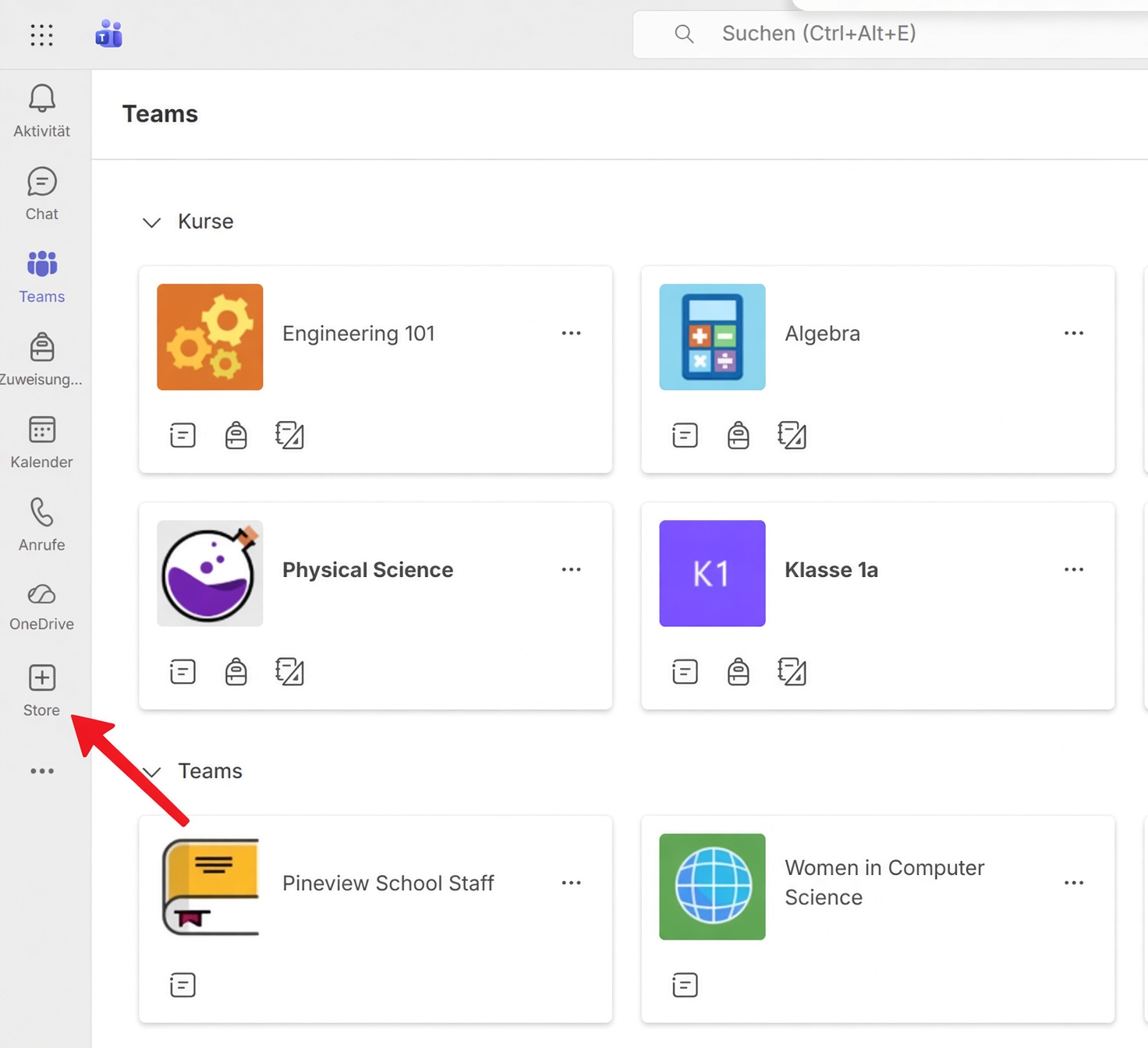
Step 4. At the bottom left, choose Manage your apps.
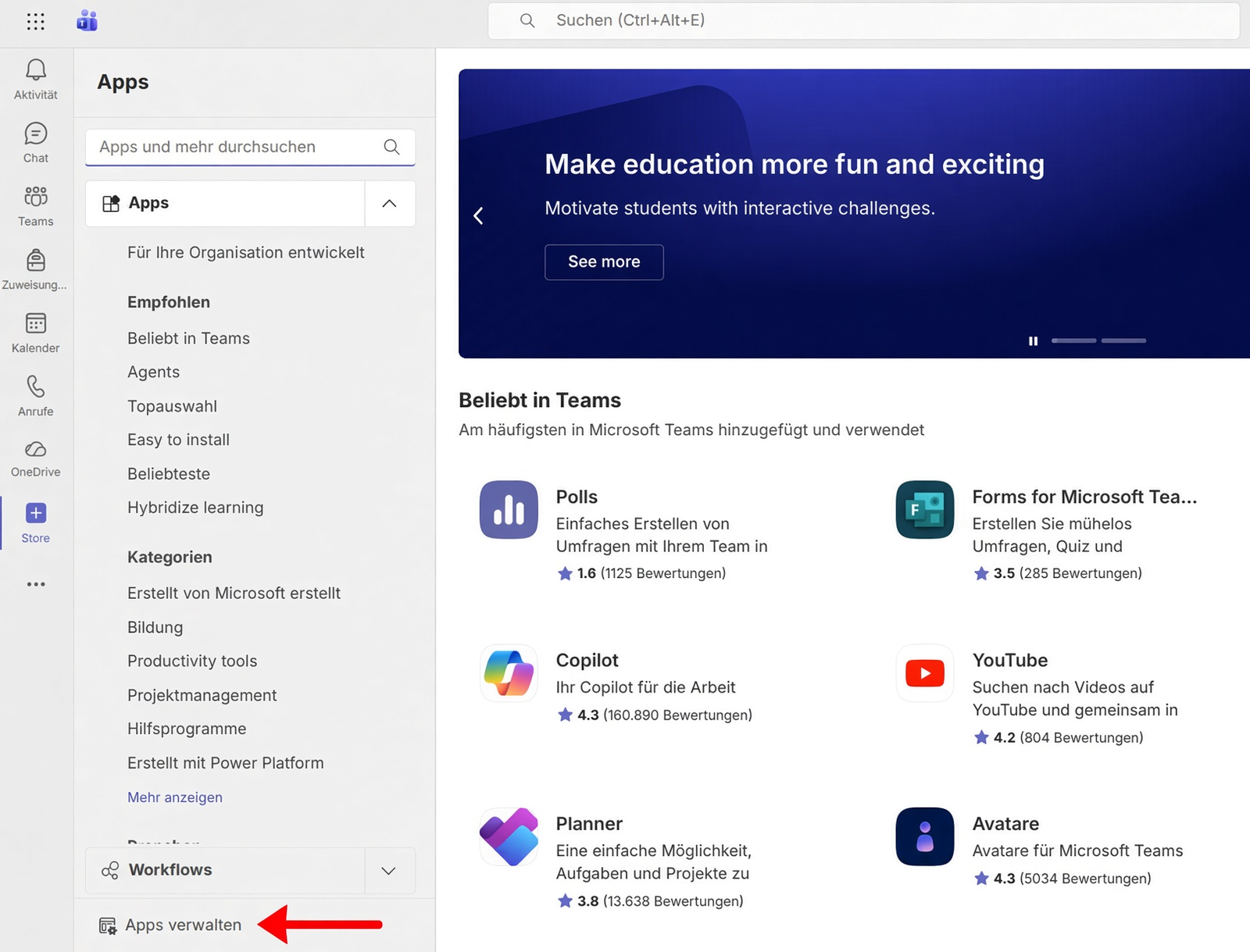
Step 5. Choose Upload an app.
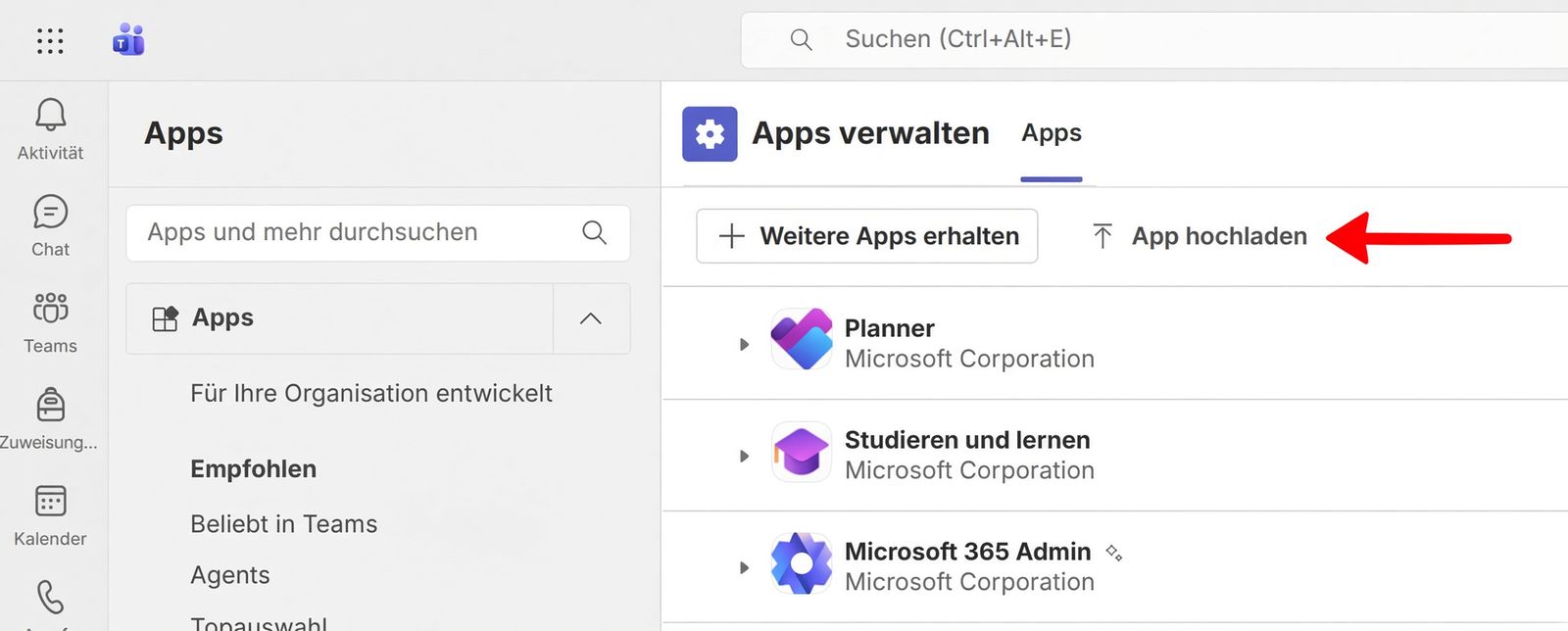
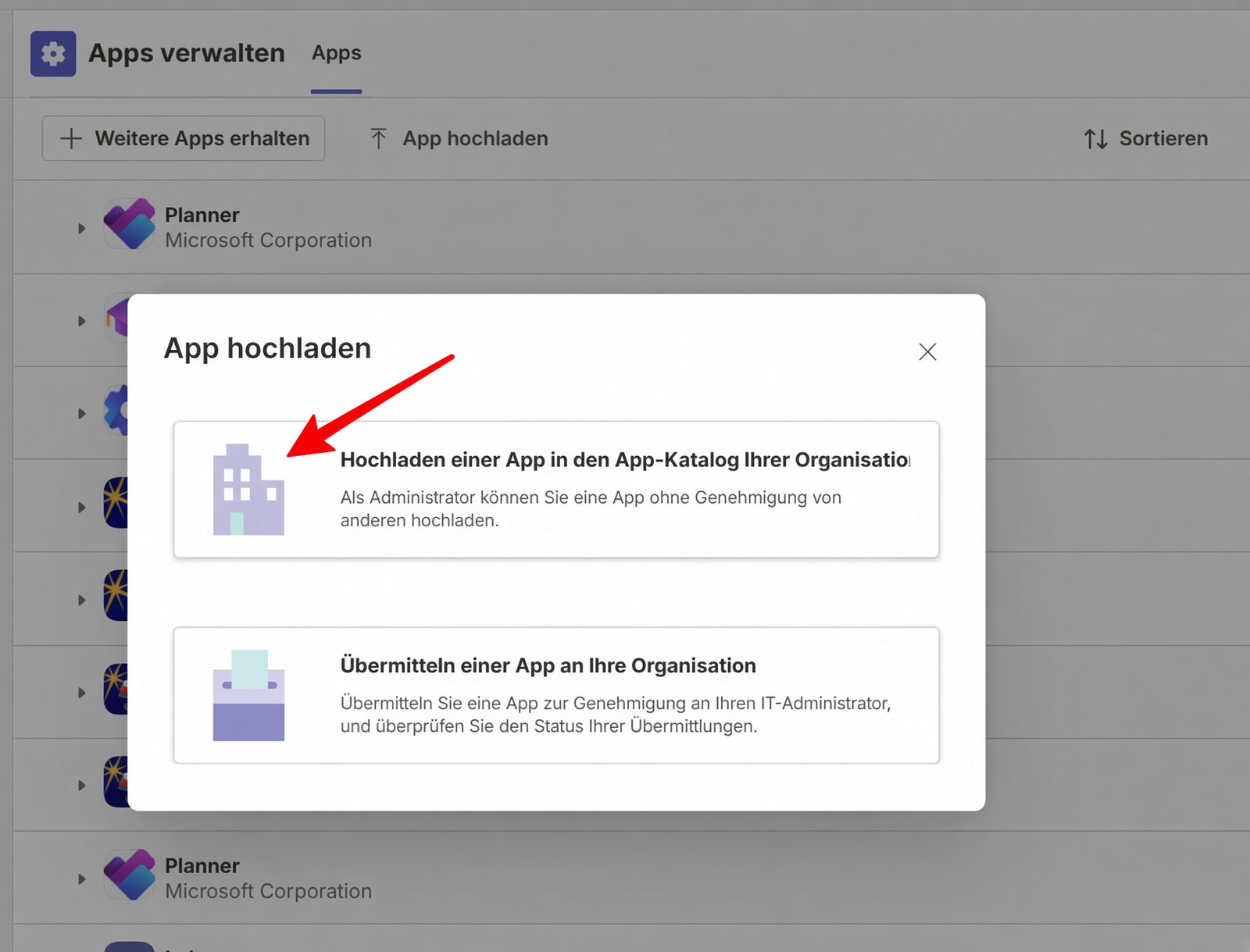
Step 6. Choose Upload an app to your org’s app catalog. The second option (Submit an app to your org) is the wrong one.
Step 7. In the file dialog, choose EduMentalAssignPro.zip. This is the complete app package. A single manifest file (manifest.json) is not enough.
Step 8. Wait until EdumentalAssignPro appears under Built for your org. This is usually quick; in some cases it can take longer.
Step 9. Open the app with Open.

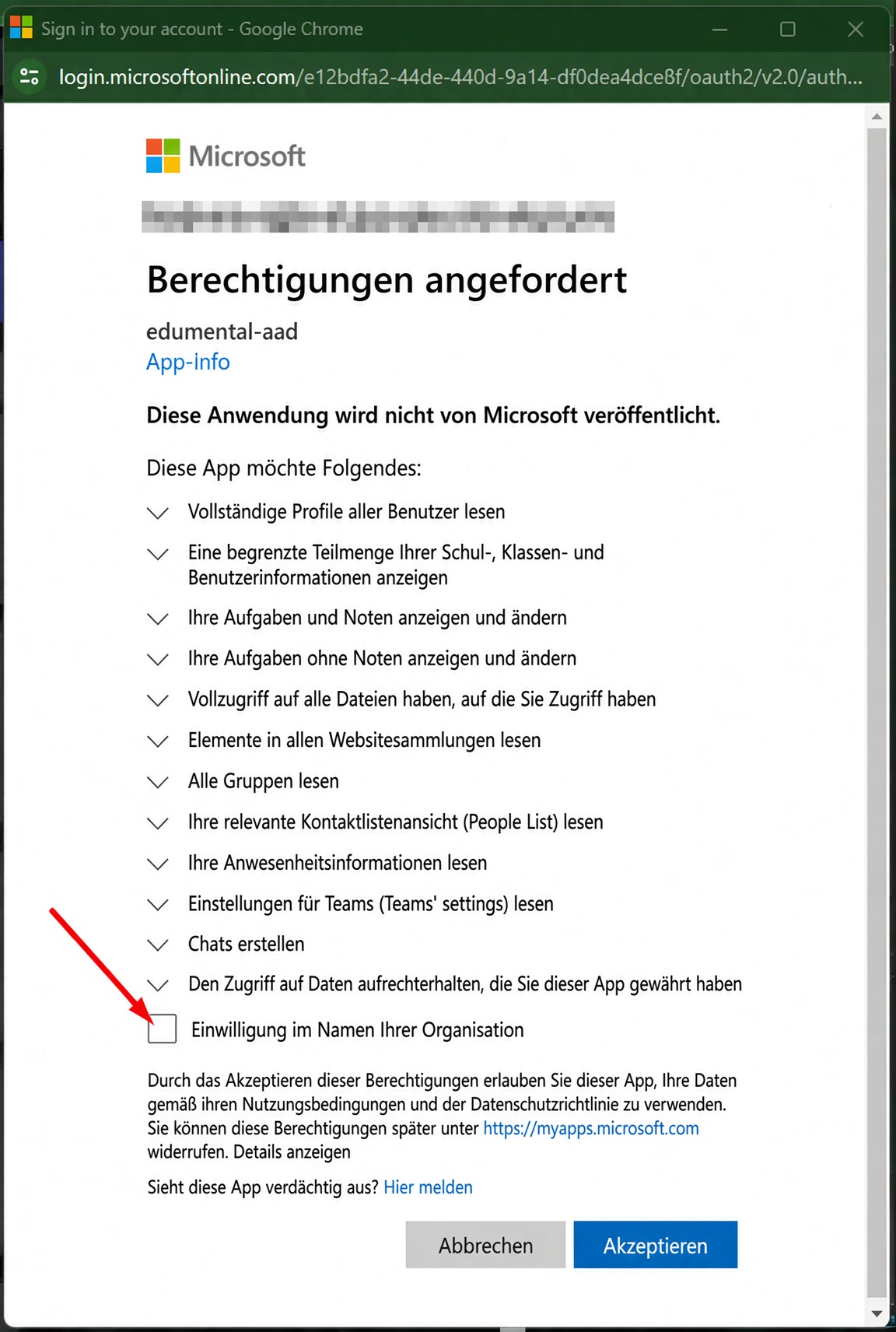
Step 10. When you first open it, the permission request appears. Check Consent on behalf of your organization and choose Accept.
Next step
You then set up the organization-wide Graph/Entra permissions in Admin 2: Granting access .
Teachers then find the app here: Step-by-step guide to installation and use.
Something not working as it should?
Contact support or, in urgent cases, call +41 76 753 05 02 (regular call or WhatsApp).